How to use Telocall Link
Choose your platform. Only phone traffic goes through Telocall Link — everything else stays on your normal internet.
What Telocall Link does
Telocall Link is a split-tunnel VPN for your Telocall phone service. It makes your phone traffic appear from an allowed location while leaving browsing and other apps on your normal internet.
- Sign up or get invited at link.telocall.com
- Wait for Telocall approval
- Connect from Windows, Mac, or Android, then use your phone app as usual
Pick your device
Use the tabs above for step-by-step guides:
- Windows — desktop app + WireGuard
- Mac — Terminal connect (recommended) or optional app
- Linux / Apple — coming soon · Android — APK available
On your account page, the download icon (next to profile) lists the same platforms.
Telocall Link tunnels only phone destinations at the Mac level. A second system VPN (ExpressVPN, NordVPN, etc.) can still break phone traffic — turn that off while on calls.
Chrome VPN extension + another web app: use two Chrome profiles (not two Google accounts in one window). Profile A = other software, VPN extension on. Profile B = Boomea / phone web, VPN extension off (or don’t install it there). Open a new window for each profile from the profile icon (top-right). Extensions do not share across profiles.
If Boomea is the desktop app, Chrome profiles don’t control it — keep system VPNs off and Telocall Link connected. We cannot reliably “force” phone traffic through Telocall when another full-tunnel VPN is also active.
Keep Telocall Link connected while using your phone app. Disconnect when you’re finished for the day.
Install Telocall Link
- Sign in at link.telocall.com/signin.
- Open the download icon → Windows.
- Recommended: download Windows Setup (64-bit or ARM64), run it, and finish the wizard. Optional: start with Windows / desktop shortcut.
- Or portable: download the portable
.exe, run it, and check Add to startup in the app if you want. - WireGuard is bundled and installs automatically if missing.
Sign in
- Click Sign in in the app, or right-click the tray icon → Sign in…
- Use the same email and password as link.telocall.com.
- Your account must be approved before Connect works.
Connect
- Click Connect in the app window (or tray menu).
- Accept the Windows elevation prompt if asked.
- Status should show Connected.
- Open your phone app and make your call.
System tray
- If you don’t see the icon, click ^ for hidden icons.
- Right-click for Connect, Disconnect, Sign in, Exit.
- Double-click to reopen the window.
- Closing the window does not quit — use Exit in the tray.
Option 1 — Terminal (recommended)
No Homebrew required. Open Terminal and paste:
- Enter your Telocall email and password.
- Enter your Mac password when asked (sudo).
- Wait for SUCCESS, then use your phone app.
Full guide: link.telocall.com/connect-mac
Option 2 — Homebrew (tested backup)
Use this if Option 1 fails. Needs Homebrew once.
Disconnect (Option 1):
Optional Mac app
A GUI Mac app is available from the account download menu. Terminal is simpler today (no Gatekeeper / brew friction for Option 1).
- Account page → download icon → Mac
- Or follow the Mac instructions page for both methods
Linux Coming soon
A Linux client is not available yet. We will add install steps and screenshots here when it ships.
- For now, use a Windows or Mac machine with Telocall Link.
- Watch your account download menu — Linux will appear there when ready.
Download & install
Telocall Link for Android is a tunnel companion — not a softphone. It only routes phone traffic. Use your usual phone app for calls.
- Sign in at link.telocall.com/signin (account must be approved).
- Open How to connect → download Android APK.
- Open the file and install. If asked, allow install from Files / Chrome / “unknown apps”.
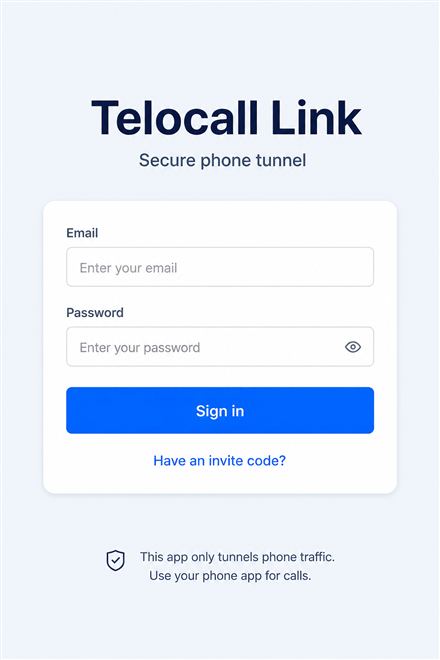
Sign in
- Open Telocall Link.
- Enter the same email and password as the website — or use an invite code.
- Tap Sign in.
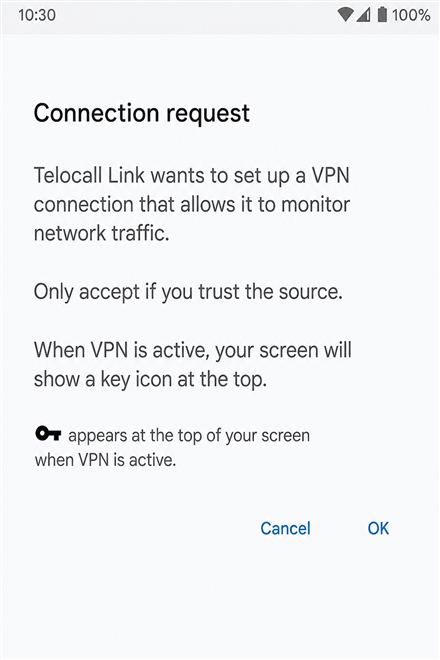
Connect & allow VPN
- Tap Connect.
- When Android asks to set up a VPN connection, tap OK / Allow.
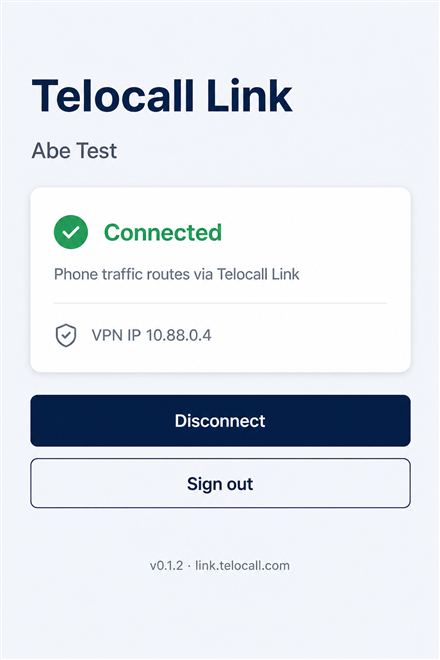
- Status should show Connected with a VPN IP.
Place calls as usual
- Leave Telocall Link Connected while you work.
- Open your normal phone app and place calls.
- Only phone traffic uses the tunnel — browsing stays on your normal internet.
- Tap Disconnect when you are done.
Apple (iPhone / iPad) Coming soon
An iOS / iPadOS app is not available yet. We will publish App Store or install steps with screenshots here when ready.
- Mac users: use the Mac tab (Terminal connect works today).
- iPhone / iPad support will show under Downloads → Apple.